
10 Free Premiere Pro Logo Animations – Smoke + Shape Intro Collection
Looking for dynamic logo reveals that blend modern geometry with atmospheric effects? This collection features 10 free Premiere Pro logo animation templates that utilize striking motion design. Provided as customizable project files, these templates are perfect for tech channels, corporate videos, or any brand needing a sophisticated and energetic opener. Download these updated free PR templates now and elevate your motion graphics efficiently.
💨 10 Free Intro Templates for Premiere Pro (Updated 2026)
1. Simple Rise Logo
A sophisticated, minimalist logo reveal template. The logo emerges with a smooth rising motion, perfect for brands that prioritize a clean, professional, and elegant aesthetic in their video intros.
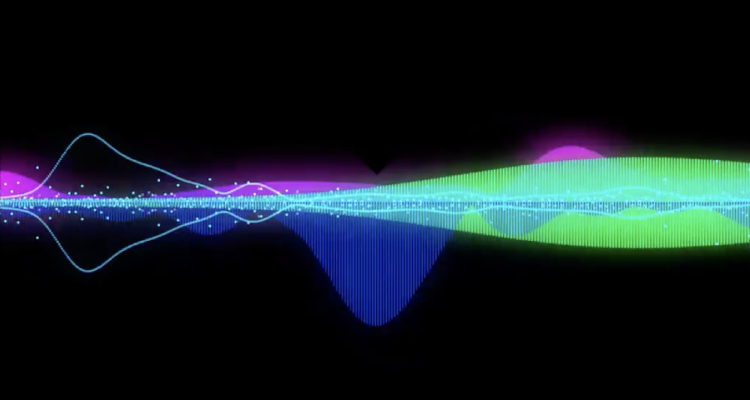
2. Logo Audio Visualizer
Designed specifically for music and podcast creators. This template features an audio-reactive visualizer that syncs perfectly with your rhythm, adding a high-energy, rhythmic pulse to your logo.

3. Particle Explosion Logo
Capture attention with a high-impact particle explosion. This template is ideal for gaming intros, tech reviews, or any cinematic content that requires a bold and intense visual reveal.
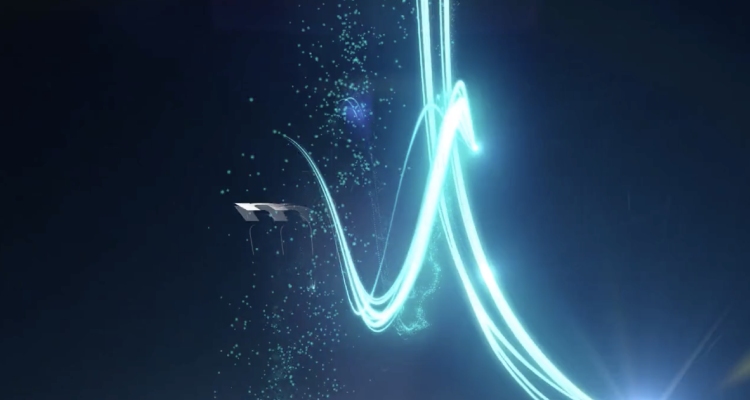
4. Particle Ripple Logo
Combining elegance with motion, this template uses a soft particle ripple effect to unveil your brand. It offers a balanced, professional look suitable for creative agencies and artistic projects.
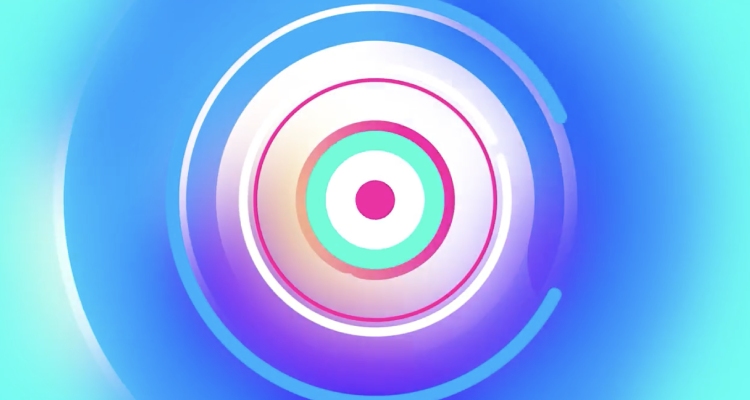
5. Swirling Colors Logo
Infuse your brand with life using dynamic swirling color transitions. This template is perfect for content creators aiming for a vibrant, energetic, and eye-catching visual introduction.
6. Center Spin Logo
A classic, reliable animation style. The center spin effect provides a professional and stable reveal, making it an excellent choice for formal presentations and established brand identities.
7. Animated Shape Logo Frame
Stay on trend with modern flat-design shape framing. This template wraps your logo in sleek, geometric motion, delivering a crisp, high-quality, and contemporary aesthetic to your video.
8. Hard Drop Logo
Get straight to the point with a punchy 'Hard Drop' effect. This template provides a quick, confident, and impactful reveal, ideal for fast-paced vlogs, tutorials, or social media highlights.
9. Right Bounce Logo
Inject energy and fun into your project with this playful bounce reveal. Its friendly, upbeat motion is perfectly suited for lifestyle content, community vlogs, and lighthearted branding.

10. Growing Leaves Logo
A unique, nature-inspired reveal. Perfect for brands in the wellness, sustainability, or organic product sectors, this animation allows your logo to bloom naturally on the screen.
🚀 Quick Usage Guide and Summary
These Premiere Pro project files (.prproj) give you full control over the animations without needing any other software. Simply replace the placeholder asset in the nested sequence.
Simple Usage Instructions:
- Step 1: Open the downloaded .prproj file in Adobe Premiere Pro.
- Step 2: Navigate to the project panel and locate the sequence or nested composition usually labeled "Replace Logo Here" or "Edit Me".
- Step 3: Open the placeholder sequence and simply drag your logo (PNG recommended) onto the timeline to replace the existing logo layer.
- Step 4: Return to the main sequence to view your finished logo animation.
❓ Frequently Asked Questions (FAQs)
What version of Premiere Pro do I need for these project files?
Most modern Premiere Pro project files are backward-compatible. However, it is generally recommended to use a recent version (CC 2021 or newer) for the best performance and compatibility.
Do these templates require After Effects (Dynamic Link)?
No. These are native Premiere Pro projects (.prproj), meaning they do not rely on Dynamic Link or external After Effects compositions to function.
Can I adjust the speed of the animation?
Yes, since you have the full project file, you can modify the duration of the animation or use Premiere Pro's Time Remapping tool on the nested sequences to speed up or slow down the reveal.
Can I change the colors of the animations?
Absolutely. You can easily adjust the color parameters (often via Lumetri Color or adjustment layers) applied to the elements within the project file.